



.png)

In short: You can now draw your pickup zone using custom shapes and exclusion areas in the Supplier Portal. It means guests see upfront whether you can collect them, and you avoid getting "not as advertised" reviews that were really about logistics. Available now for all suppliers with area-based pickup.
Pickup is where the experience begins. Before the first stop, before the first story, a guest has already formed an impression based on how smoothly the collection went.
Our Spring 2025 Travel Experience Trend Tracker looked at review data across millions of GetYourGuide bookings. In vehicle tours, a clear pattern showed up: when things go well, guests talk about the guide's knowledge, the unexpected stories, and the feeling of being shown somewhere properly. When they don't, it's rarely the tour itself. The phrase "not as advertised" appears in 96% of negative vehicle tour reviews — and almost every time, it's about logistics, not content.
This matters because the experience sector is unforgiving in a specific way. Guests have limited time in a destination. A bad first impression doesn't get corrected later in the day. It colors everything.
This spring, we've made one part of that easier to get right.
What's new in pickup areas
Until now, defining a pickup area meant working within fixed shapes that didn't always match real geography. Old city centers don't fit rectangles. Neither do coastal roads, neighborhoods split by a canal, or service zones that wrap around a pedestrianized square.
We've now introduced custom drawing tools for pickup areas in the Supplier Portal. Three things to know:
1. Custom shapes
Use the polygon tool to trace a complex boundary or simpler shapes for straightforward areas. Stack multiple shapes if you operate across more than one neighborhood or city.
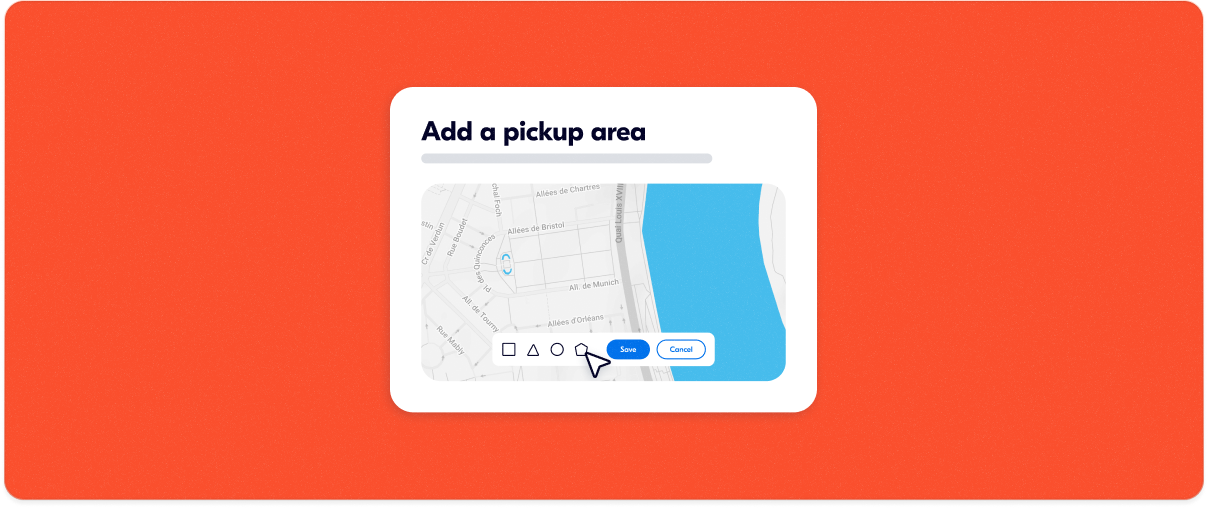
2. Exclusion zones
Draw a shape over any area inside your service zone where pickup isn't available, and mark it as excluded. Guests with addresses in those zones see upfront that pickup isn't available for them.
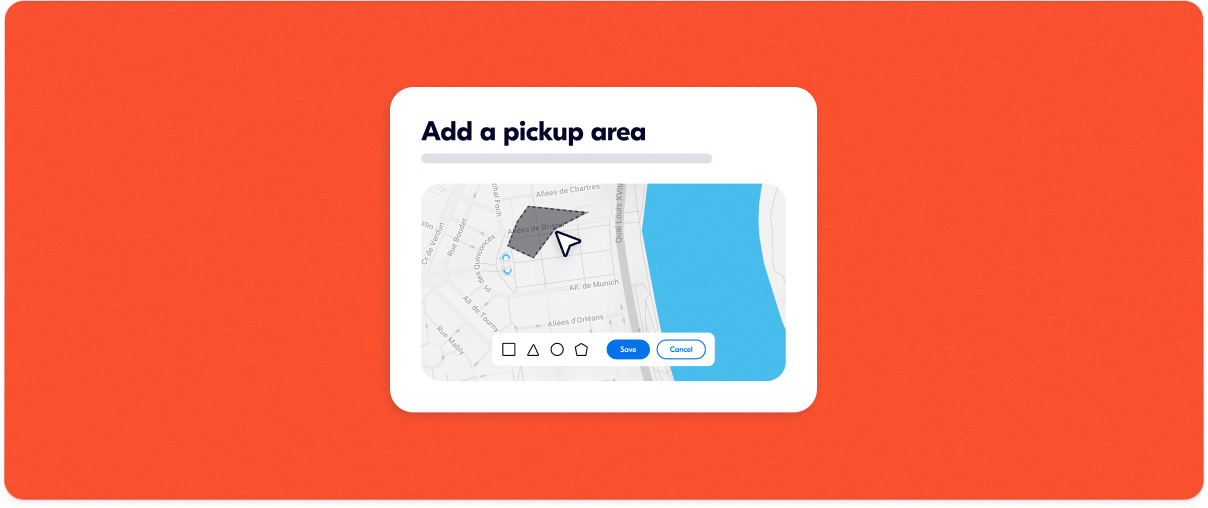
3. Customer view toggle
Before saving, switch to a preview of exactly what guests will see when they enter their pickup address. Worth using before you confirm.
Where to find it
The feature is live now for all suppliers with area-based pickup. In the Supplier Portal, go to Products → Options → Edit options → Meeting point or pickup.
For more detail on how to set it up, see the guide.
Why precision is a form of hospitality
Pickup complaints are rarely about effort or care. They're about information. Guests who knew exactly where you'd collect them, and who understood before booking that their address was in your coverage area, arrive calm. Guests piecing it together on the morning do not.
That's why accurate coverage matters beyond the operational. When your pickup area reflects where you actually operate:
• Guests in your zone book with confidence.
• Guests outside it aren't disappointed on the day.
• Your reviews stay focused on the experience, not the logistics.
Old city centers, pedestrianized streets, restricted zones — they exist in almost every destination, and guests understand them. What they struggle with is discovering them after the fact, once the expectation is already set.
What great pickup looks like in practice
Setting up your area accurately is step one. These habits build on it.
1. Be upfront about where you can't go
Mark exclusion zones for old city centers, pedestrianized streets, and restricted areas. Guests don't resent these. They resent finding out on the morning. Exclusion zones mean guests know before they book, not after.
2. Be specific about where to wait
"Your hotel lobby" is not a meeting point. A lobby can be on any floor, at any entrance, in a building with three doors. Tell guests exactly where to stand:
"We'll meet you at the main entrance of your hotel, street-side. Look for our blue van and your guide holding a sign with your name."
The more specific you are, the calmer they'll be.
3. Send a message before the day
Guests book weeks or months in advance and often arrive on the day with only a vague memory of the details. A short message the day before with the pickup window and a contact for the driver removes the most common source of pre-pickup anxiety. It also signals professionalism before the day has even started.
4. Use the journey
Pickup is a captive moment with an attentive audience. Guides who treat vehicle time as part of the experience, rather than dead time before it starts, consistently get better reviews. A piece of local context, something to look forward to at the first stop: it costs nothing and sets a different tone.
5. Revisit your coverage before each season
Road closures, access restrictions, and operational changes mean the area you defined last year may not reflect where you operate today. Check before the busy season, not after the first complaint.
Update your pickup area
The tools are live now for all suppliers with area-based pickups. If you offer pickup, it's worth checking that your defined area still reflects where you operate.
Go to your pickup settings →
For step-by-step guidance, see the guide.
Part of our Spring 2026 release. See everything that's new →
FAQ
• What are custom pickup areas?
Custom pickup areas are drawing tools in the GetYourGuide Supplier Portal that let you trace the exact boundary of your service zone using a polygon or simpler shapes, instead of fixed rectangles. Learn more
• What is a pickup exclusion zone?
An exclusion zone is an area inside your pickup zone where you can't collect guests. For example, a pedestrianized old town. Guests with addresses there see upfront that pickup isn't available before they book.
• Where do I set up custom pickup areas in the Supplier Portal?
Go to Products → Options → Edit options → Meeting point or pickup. The feature is available to all suppliers with area-based pickup.
• Can I have more than one pickup area?
Yes. You can stack multiple shapes if you operate across more than one neighborhood or city.
• Can I preview what guests will see?
Yes. Use the customer view toggle before saving to see exactly what guests will see when they enter their pickup address.
.png)